Bionic Man,
I did some additional investigation (and recalling how Photobucket does things
As your are familiar with, Photobucket gives you four choices

Instead of using the forum's Link tool, I think you copied Photobuckets IMG URL, the fourth choice in the above picture. That produces the effect that your got, clicking on the picture will open a page in Photobucket and the URL you see as you compose your post is very "messy" and hard to know what is what.
Instead, use the Direct URL, the second choice in the above picture. Open the message window's Image tool by clicking on this icon

in the toolbar. This window will open
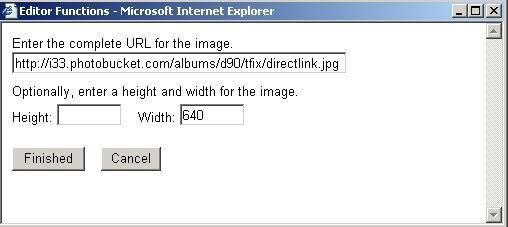
Paste your picture's URL in the top field. If it is a large picture put 640 in the Width field (that's recommended, but you can go up to 800 without violating forum rules.)
Leave the Height field empty It is never correct to put values in both fields. Use the width field and the display engine will adjust the height to keep the picture in proportion.
Then click on the Finished button. The window will disappeared and a correctly formatted URL will appear in your composition.
Alternately, many of us that post a lot of pictures, type the format tags ourselves
So I would copy the Direct URL, in the message window, I would type the IMG tag, which looks like this: (upper and lower case letters are treated the same)
[img]
then I would paste by URL
[img]http://i.imgur.com/DeyVjav.jpg
If the picture is too large, I would type a space and width=640
[img]http://i.imgur.com/DeyVjav.jpg width=640
Finally, I would type the closing tag, which is [/img], to get
[img]http://i.imgur.com/DeyVjav.jpg width=640[/img]
When I make the post, this picture would be displayed.
 Again, I used a "trick to display the tags you can see in my post. Without the trick, my post could not be made. If this post is quoted, the trick will be negated and one would get a format error, if one tried to post it.
Posting pictures on the forum is not hard, but it does require learning the correct technique.
Tom